 FocusHound
You get into bed and open your phone for a quick check. Before you know it, it’s much later than you planned.
One practical way to interrupt that pattern is to give your scrolling apps a bedtime. Set a schedule that blocks them in the evening and makes them available again the next day.
You can do this with Apple’s built-in Screen Time controls or FocusHound, a separate iPhone app. This guide walks through both, using 10 PM–6 AM as an example.
Start with the hours you want to protect
Choose when you want to stop scrolling and when you want access back. Those times don’t have to match your bedtime and wake-up time exactly. You might want your apps blocked while you read before bed, or until after your morning routine.
Next, identify the apps that keep you scrolling. That might be Instagram and TikTok, or YouTube and Reddit. Start with the ones you regularly open when you meant to put your phone down.
Also decide what you’ll do when the block starts. Put a book beside the bed, choose something to listen to, or keep an adult coloring book and colored pencils nearby. Having something ready gives you a next step when your usual feed is unavailable.
Choose how you want to block your apps
Apple Screen Time is built into your iPhone. You set it up in the iPhone’s Settings app and choose which apps remain available during your scheduled downtime.
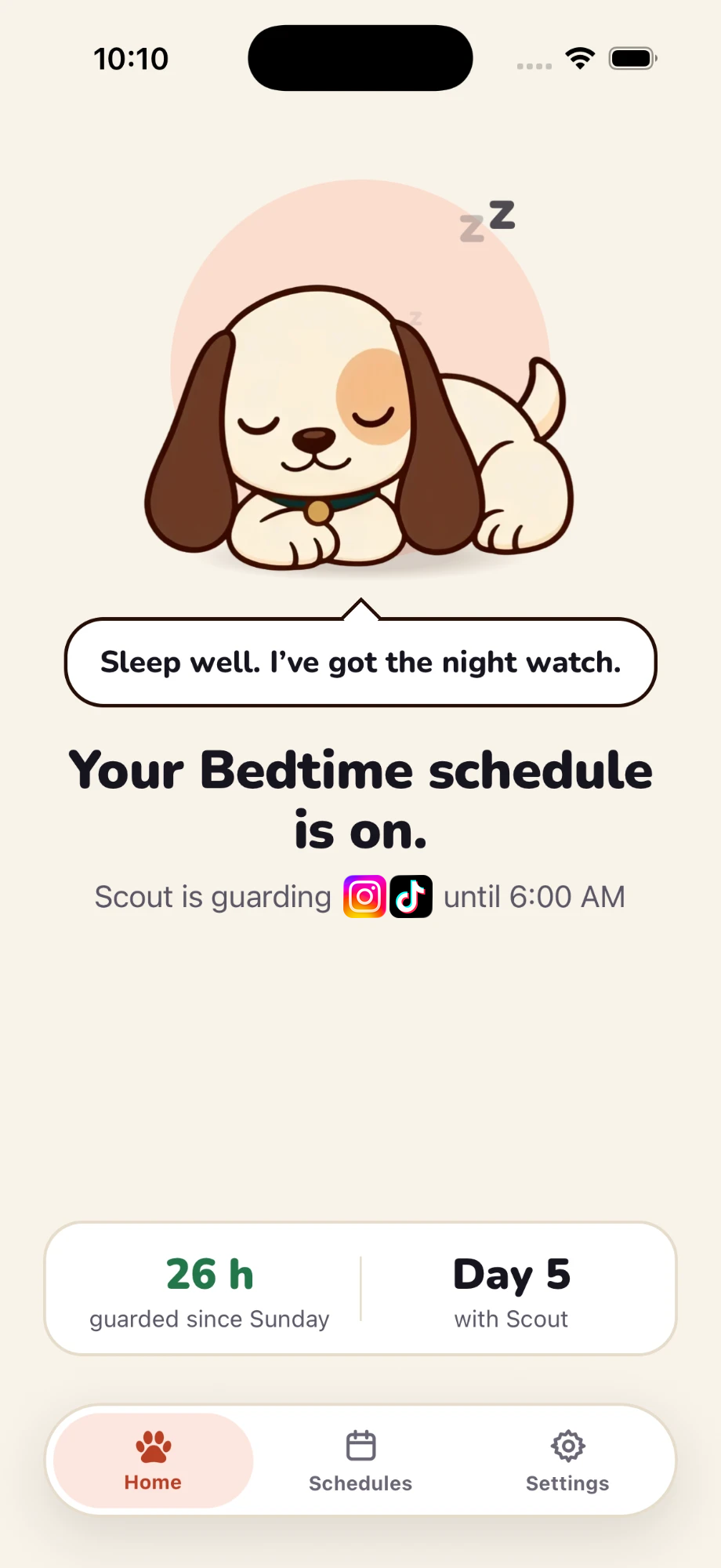
FocusHound has a fun little guard dog that protects your apps. During setup, you name your guard dog, choose the apps you want guarded, and set your bedtime hours.
If you already use Sleep Focus, you can keep using it to manage notifications and calls. App blocking is a separate part of the setup covered below. Apple explains what Sleep Focus does here.
Option 1: Apple Screen Time
Open the Settings app on your iPhone → Screen Time. The next steps depend on which menu appears.
If you see Downtime
Downtime restricts apps broadly, so you’ll also choose which ones should remain available.
- Turn on App & Website Activity if it’s off.
- Return to Screen Time, tap Lock Screen Time Settings, and create and confirm a four-digit passcode if you haven’t already.
- Open Downtime and turn on Scheduled.
- Choose Every Day and set the hours to 10 PM–6 AM, or use times that fit your routine.
- Turn on Block at Downtime.
- Return to Screen Time → Always Allowed. Allow the apps and contacts you need, and leave your scrolling apps out.
Block at Downtime matters: without it, the reminder can be dismissed and you can continue using the apps. These steps follow Apple’s Downtime guide and passcode instructions.
If you see Screen Time Schedule instead
Apple’s newer layout uses time windows and app categories. Follow Apple’s Screen Time Schedule instructions for that interface; the Downtime steps above apply only when that menu is present.
Apple requires version 27 or later across your Apple devices for these newer features, including devices in your Family Sharing setup.
Option 2: FocusHound
FocusHound guides you through choosing your apps and setting your hours during its initial setup. You make both choices inside FocusHound; you don’t need to create an Apple Downtime schedule as well.
Open FocusHound and follow the setup:
- Choose “In bed at night.” When asked when distractions get you, select this answer so your proposed schedules include Bedtime.
- Allow Screen Time access. This lets FocusHound apply the app restrictions you choose.
- Select the apps to guard. When you reach Choose apps, open Apple’s picker, select the apps you want FocusHound to block, and confirm.
- Review your Bedtime hours. The starting schedule is every night, 10 PM–6 AM. Tap Edit beside Bedtime to change the days, start time or end time. Tap Done, leave the schedule enabled, then tap Looks right.
- Choose Normal or Strict. The difference is explained below.
- Finish the remaining setup prompts.
For an overnight schedule, the selected day means the night it starts. Monday, 10 PM–6 AM runs from Monday night into Tuesday morning. To protect the nights before a Monday–Friday workweek, select Sunday through Thursday.
Already using FocusHound? Open Schedules → Edit beside Bedtime to adjust its hours. If Bedtime isn’t listed, open Ideas in the Schedules tab and tap + beside Bedtime.
Decide if you want breaks
FocusHound has two modes: Normal and Strict.
- Normal mode allows breaks. Complete five slow breaths or a walk to temporarily unlock your apps. When the break ends, blocking resumes if your schedule is still active.
- Strict mode doesn’t allow regular breaks. Your apps stay blocked during the scheduled hours, without the walking or breathing unlock options.
You can choose a different mode for each schedule. For example, use Strict for Bedtime and Normal for Work. That lets you keep taking breaks during the day while keeping those break options off at night.
If you’re setting up FocusHound for the first time, choose Normal during setup. Then, to turn on Strict just for Bedtime:
- Open Schedules and tap Edit beside Bedtime.
- Turn on Strict and confirm Use Strict.
- Tap Done to save. Leave your daytime schedules in Normal mode.
While a Strict schedule is running, you can’t normally edit it or switch it off. You get one emergency pass per week, which opens your apps for an hour and allows schedule changes.
Opens the App Store.
Check that your nighttime setup works
When your chosen start time arrives, open one of the apps you selected. It should show a blocking screen instead of your feed.
Then check the things you still want to use. If you listen to a podcast or audiobook before bed, make sure that app remains accessible. Review your alarm and any contact or notification settings you rely on, especially if you also use Sleep Focus.
The next day, check that your scrolling apps become available at the scheduled end time.
If a FocusHound block doesn’t start, confirm that:
- The app is included in your guarded apps.
- Bedtime is enabled for the correct night.
- The start and end times are correct.
- FocusHound still has Screen Time access.
If an app stays blocked after Bedtime ends, check for another active FocusHound schedule, focus session or Apple Screen Time restriction. For example, a morning schedule may continue blocking immediately after Bedtime finishes.
Once the hours fit your routine, the schedule can handle the same cutoff each night. You can adjust it later in FocusHound → Schedules → Edit beside Bedtime.
If your scrolling also spills into the workday, see our guide to blocking Instagram during work hours.