 FocusHound
If Instagram keeps interrupting your workday, you can set a schedule that blocks the app during work and makes it available afterward. For example, you could keep Instagram blocked from 9 AM to 5 PM, Monday through Friday.
There are two approaches covered in this guide: Apple’s built-in Screen Time controls and FocusHound, a separate iPhone app. Both support scheduled restrictions, but they offer different ways to manage your access.
We’ll explain the choices first, then walk through each using a weekday work schedule. You can follow the method that fits your needs.
Choose your blocking method
Apple Screen Time is built into your iPhone. You configure it through the iPhone’s Settings app. Depending on the menus available, you’ll use Downtime or Screen Time Schedule and decide which apps remain accessible during work.
Choose FocusHound if you want mindful breaks or Strict mode. You select your apps and work hours during setup. Normal mode lets you temporarily reopen your guarded apps after a short breathing exercise or walk. Strict mode removes those ordinary breaks and prevents you from switching off the schedule while it’s running, with one emergency pass available each week.
For either approach, a schedule is what gives you a work-hours boundary.
Option 1: Use Apple’s Screen Time controls
Open the Settings app on your iPhone, then tap Screen Time. Follow the instructions for the menu you see.
If you see Downtime
Downtime restricts apps broadly, so you’ll also need to allow the apps you want available for work.
- Enable App & Website Activity if it’s off.
- Return to Screen Time, scroll down, and tap Lock Screen Time Settings. Create and confirm a four-digit Screen Time passcode if you haven’t already set one.
- Open Downtime and turn on Scheduled.
- Choose Customize Days and set Monday through Friday to 9 AM–5 PM.
- In Downtime, turn on Block at Downtime so restricted apps are blocked during those hours.
- Return to Screen Time → Always Allowed. Allow your essential apps and leave Instagram out.
Don’t skip Block at Downtime: with it off, you can dismiss the reminder and keep using Instagram. Apple’s Downtime guide explains this setting.
If you see Screen Time Schedule
Apple’s newer layout organizes access around time windows and app categories.
- Open Screen Time Schedule and turn on Schedule.
- Tap Add Schedule, select your workdays, and confirm.
- Open the work Time Window and adjust its start and end times.
- Review the Time Allowance categories available during that window and Always Allowed. Make sure Instagram isn’t permitted through either.
- If you’re using Time Allowances with your schedule, check Match Screen Time Schedule under Screen Time → Time Allowances.
Apple requires version 27 or later across your Apple devices for these newer features, including all devices in a Family Sharing setup. An iPhone running iOS 27 may still show Downtime. Apple’s current schedule guide covers this layout.
Whichever menu you use, check Instagram during the scheduled window and make sure your essential work apps remain available.
Option 2: Set up Instagram blocking in FocusHound
FocusHound walks you through choosing your apps and setting your work hours during its initial setup. You’ll make both choices inside FocusHound; you don’t need to create an Apple Downtime schedule as well.
Install FocusHound, then open it and follow the step-by-step setup:
- When asked when distractions get you, select At work or school so your setup includes a Work schedule.
- Grant Screen Time access when prompted. This lets FocusHound apply the app restrictions you choose.
- When choosing apps to guard, select Instagram in Apple’s app picker and confirm.
- Review your Work schedule. Tap Edit to adjust the days and hours—for example, Monday through Friday, 9 AM–5 PM—then tap Done and leave the schedule enabled.
- Choose Normal if you want optional walking or breathing breaks, or Strict if you want to remove those break options.
- Complete the remaining setup prompts.
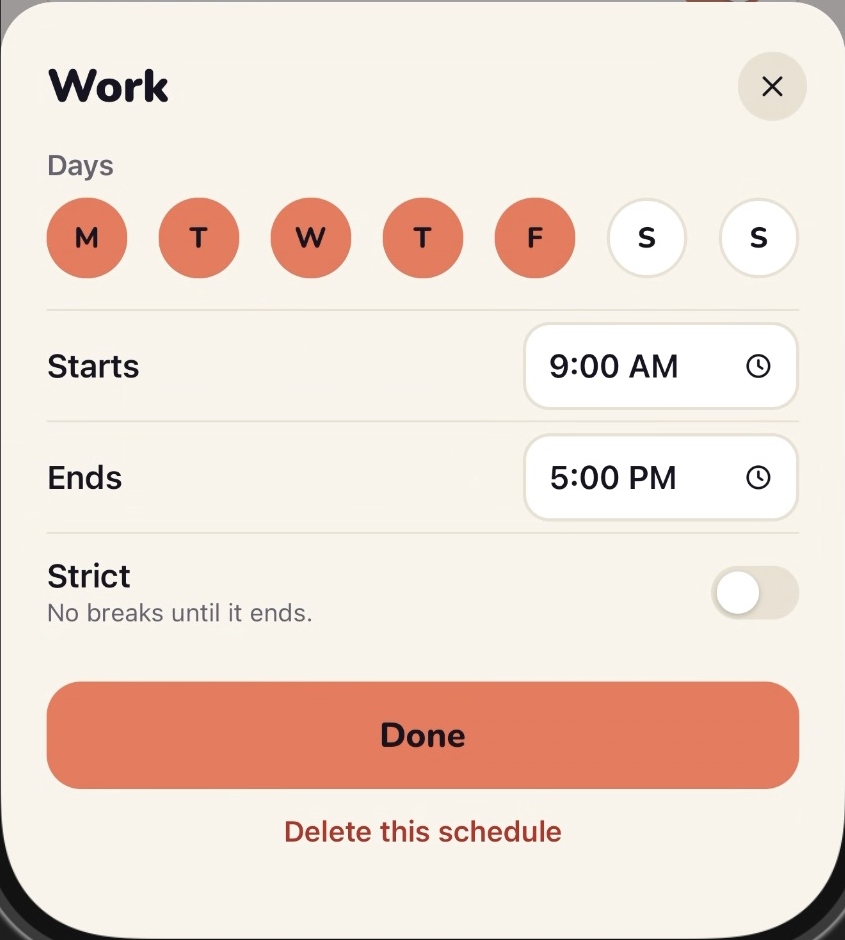
Instagram will be shielded by your guard dog during work hours. If you use Instagram for your job, choose hours that leave room for those tasks.
Changing your choices later
Once setup is complete, you can adjust your work hours in FocusHound → Schedules → Edit beside Work.
To change your guarded apps, open FocusHound → Settings → Guarded apps → Change. These are the places to revisit when your routine changes; you don’t need to repeat the initial setup.
Check what happens when the schedule starts
During the scheduled window, opening Instagram displays FocusHound’s blocking screen.
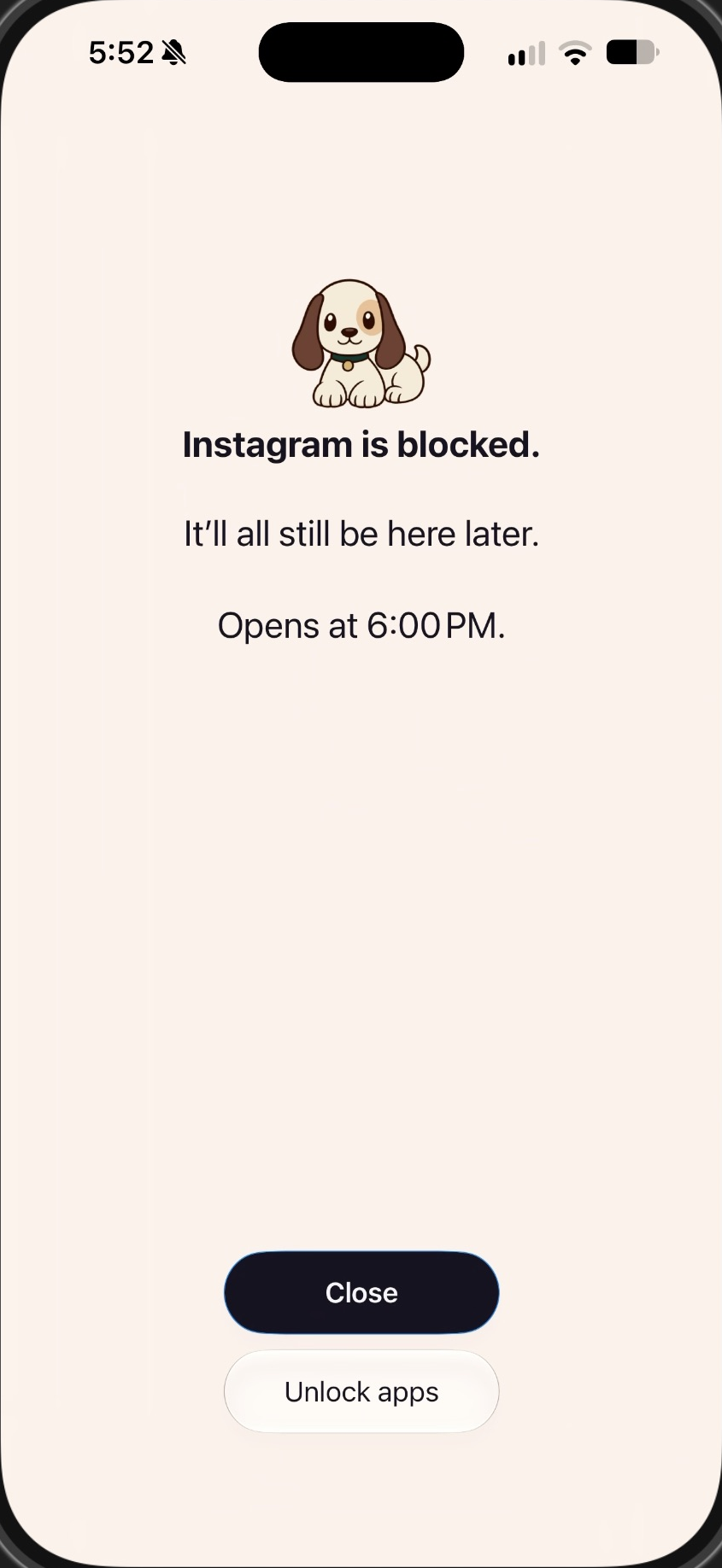
When your Work schedule ends, Instagram becomes available again, provided another schedule or restriction isn’t still blocking it.
Decide how you want breaks to work
You may occasionally want to check Instagram before work is over. In Normal mode you can unlock your apps for a short break through either of these options. These mindful moments help you stay calm instead of being stimulated all day:
- A walk: walk for five minutes and 400 steps.
- Breathe with Scout: you start at five slow breaths. Each break after that adds another breath, up to 12.
Then choose your break length.
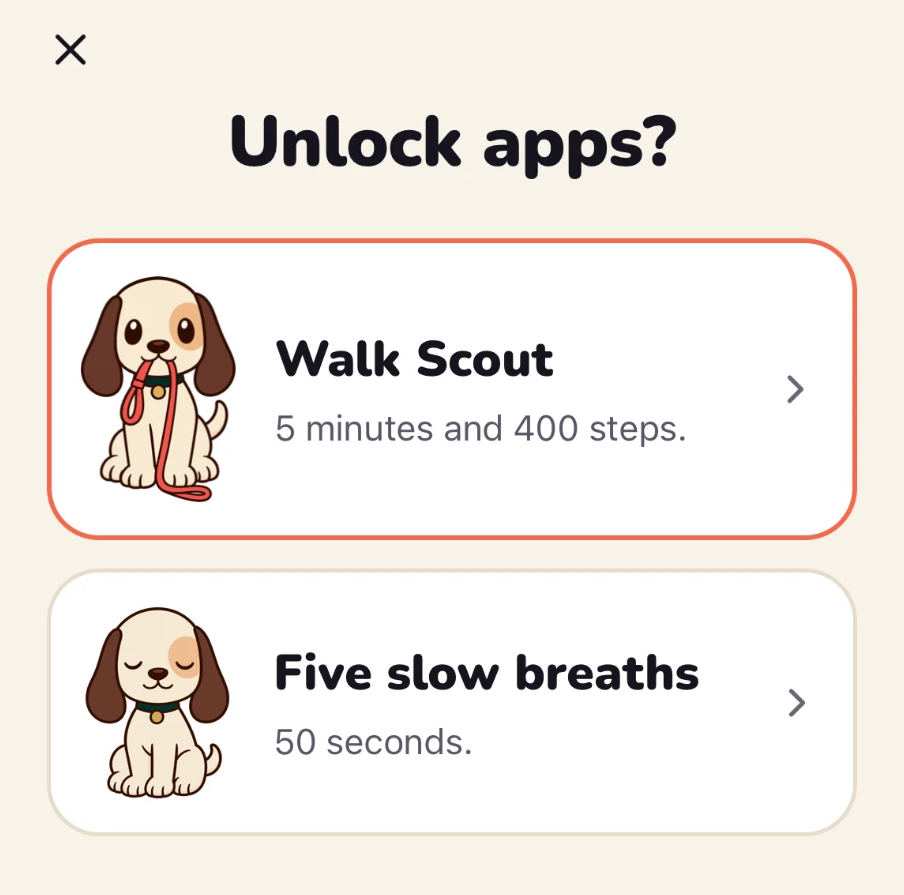
The pause gives you a moment to decide whether you still want to open Instagram. You can also finish the exercise and keep your apps blocked.
When your break is over, blocking resumes if the work schedule is still active.
If you prefer to keep those break options off the table, choose Strict mode. While a Strict schedule is running, you can’t take ordinary breaks, switch the schedule off, or delete the app. One emergency pass is available each week.
Make sure the schedule fits your workday
Once you’ve finished setup, check three things: Instagram is blocked during your chosen hours, essential apps remain usable, and Instagram becomes available when the work window ends.
If Instagram stays blocked after work, look for another active FocusHound schedule, focus session or Apple Screen Time restriction. If it opens during a FocusHound work block, check that Instagram is selected, the schedule is enabled, and FocusHound still has Screen Time access.
Start with the hours you want to protect. Apple’s controls give you a built-in starting point. FocusHound lets you choose between mindful breaks or Strict mode that locks your schedule while it runs.
Get FocusHound for iPhoneOpens the App Store.